


How to clean a MacBook screen
|
|
Time to read 5 min
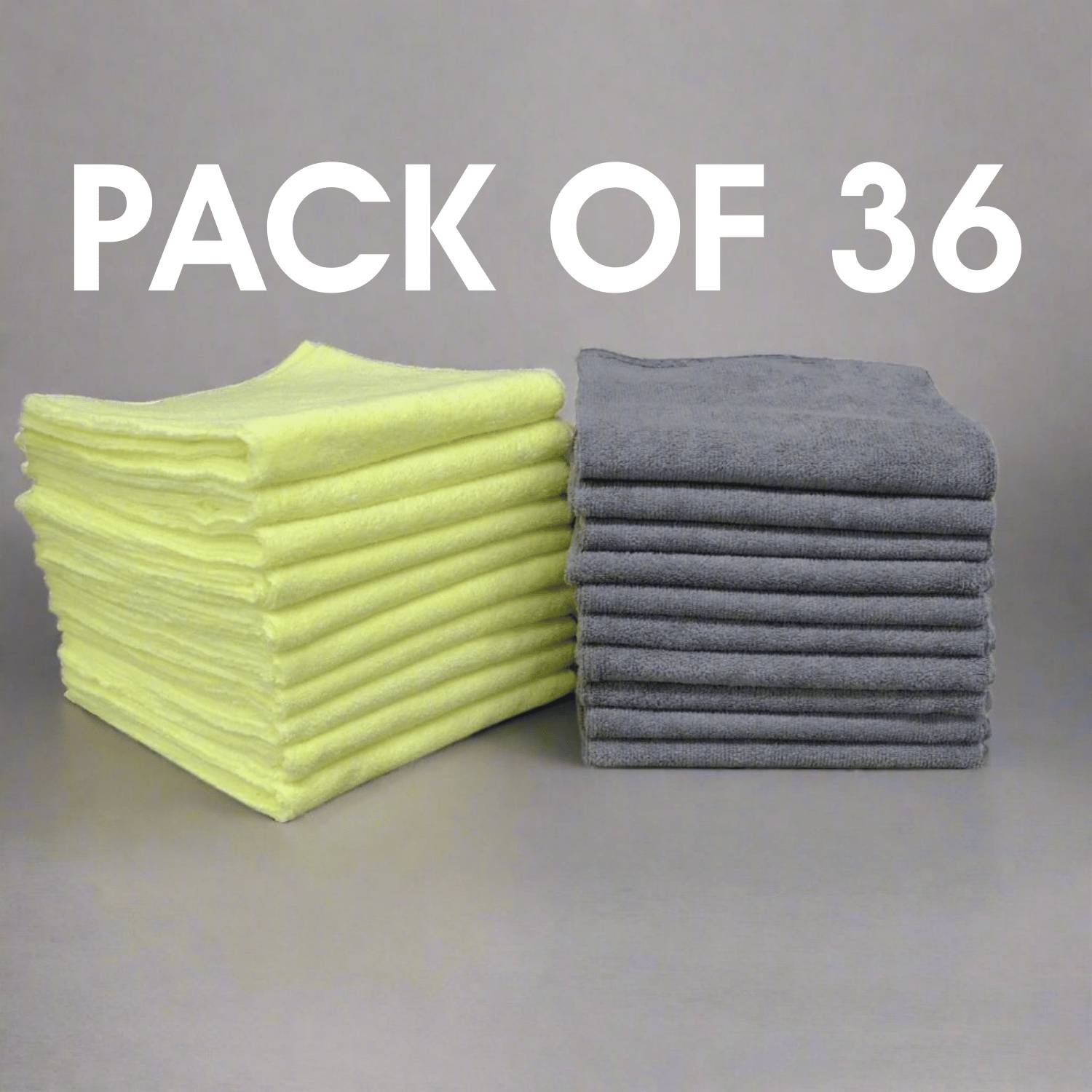
 40 x 40 cm
 Pack of 36
 Edgeless
|
|
Time to read 5 min
Raise your hand if you’ve ever fallen into this trap.
You’ve saved up and splurged on a brand new MacBook. You’re absolutely in love with it, appreciating the beauty of Apple’s design and blasting through tasks like never before. Unfortunately, as fingerprints, dust, and smudges start building up, you’re increasingly distracted by the grime now clouding your once-pristine screen. You reach for the nearest cloth or even your sleeve, and, a few seconds later, you’re staring at streaks and potentially even scratches, wishing you’d taken a minute to learn how to clean a MacBook screen correctly.
This guide will walk you through the tools you need, a step-by-step guide on how to clean a MacBook screen safely, and what to avoid when cleaning a MacBook screen. .
Keeping your MacBook screen spotless is about more than just looks and comfort; it’s about protecting your investment. If allowed to build up, dust and grime can harm your screen’s protective coating when rubbed across it, leading to impossible-to-ignore scratches and dull spots. Regular cleaning also helps to protect your laptop's professional appearance, showing that you take care of your equipment and, by extension, your work.
With a dedicated cloth and a quick clean every two or three weeks, it’s really not hard to keep a MacBook screen in as-purchased condition.
No, you absolutely don’t need ‘just any old rag and some water’.Ensuring that you have the right tools before getting to it makes the process quicker, easier, and more effective while reducing the risk of harm to your screen.
Microfibre glass cleaning cloths are ideal for cleaning sensitive electronics. They’re made with ultra-fine fibres that electrostatically trap dust and dirt, and when used damp, are highly effective at lifting and trapping other substances as well. Ensure that you only use a lint-free cloth.
Check out our selection of premium microfibre cloths to make household cleaning a breeze.
With regular cleaning, distilled water and a microfibre cloth should be able to take care of most smudges. For heavy-duty cleaning to remove a considerable layer of dirt, Apple recommends using 70% isopropyl alcohol sprayed onto a microfibre cloth.
This has several benefits, including allowing you to better see any dirt against the dark screen, better control over the device while cleaning, and removing the risk of pulling a cable too tightly and harming it.
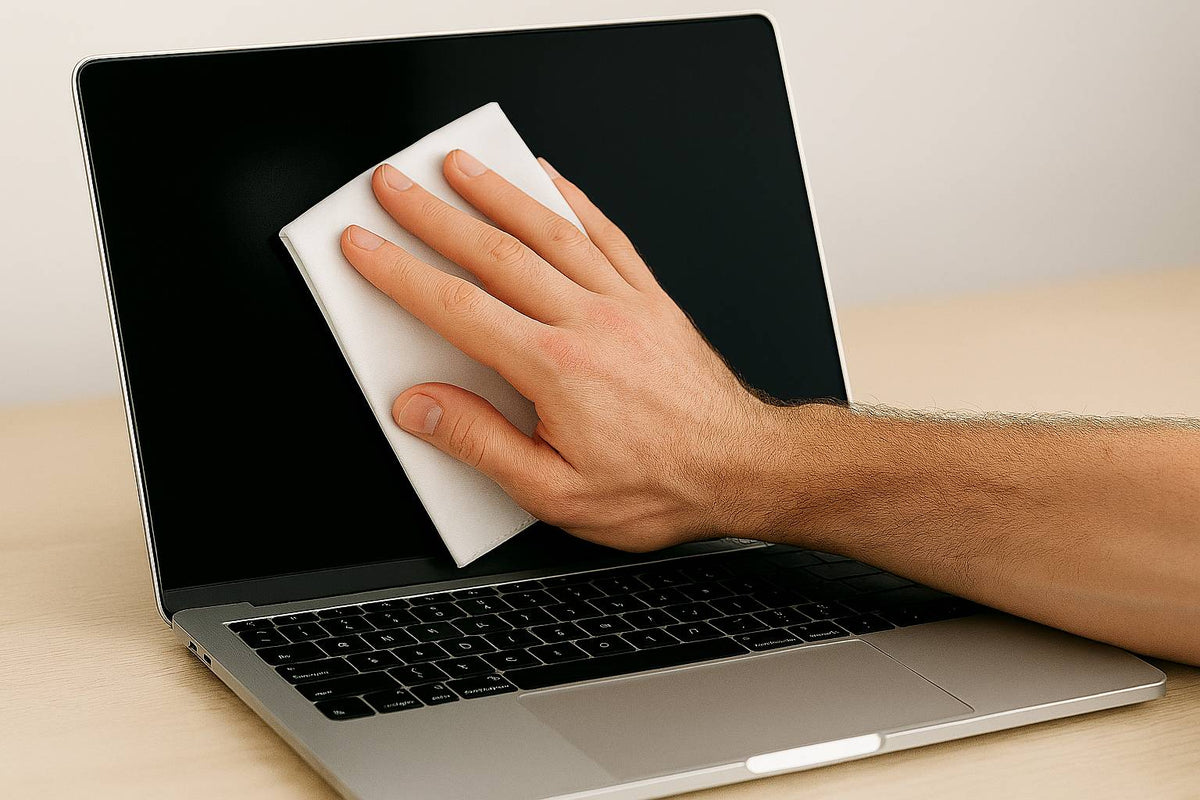
Gently wipe your screen in a circular motion with a dry microfibre cloth, applying minimal pressure. Dry microfibres create an electrostatic charge between them, drawing in dust and any loose debris on your screen’s surface. While you’re at it, now’s also a good time to wipe down your other electronic equipment with the same cloth.
For tougher spots, such as stubborn fingermarks, lightly wet a small section of the cloth with distilled water or 70% isopropyl alcohol; however, be sure not to completely soak the cloth. A few spritzes from a spray bottle should do nicely. Again using circular motions, gently wipe down any remaining dust, dirt, or grime.
Paragon Microfibre recommends opening the MacBook to 90 degrees and placing it on its side. This makes it easier to apply even pressure across the whole screen without pushing back all the time.
Once you no longer see grime or fingerprints, use the dry side of the cloth to buff the screen to crystal-clear perfection. Avoid touching any part of the screen when plugging everything back in.
MacBook screens are durable, but they’re not impervious to harsh chemicals. MacBook screens all have protective coatings designed to keep the device clean and easy to clean; however, harsh chemicals may dissolve the coating, cause it to turn cloudy, and reduce clarity and sharpness.
For the same reasons as above. Stick to distilled water or 70% isopropyl alcohol.
Always dampen your microfibre cloth, making sure it’s dry enough to not allow liquid to seep from it when in use.
MacBook screens, like all screens, are susceptible to pressure or cracking. Apply firm and even pressure when cleaning.
No. Apple specifically warns against using glass cleaners like Windex. These often contain ammonia or alcohol blends that can damage the screen’s anti-reflective coating. Stick to distilled water or 70% isopropyl alcohol applied to a cloth.
A high-quality microfibre cloth, preferably one designed for glass or screens. These are lint-free, ultra-soft, and safe for delicate coatings. Avoid tissues, paper towels, or standard cotton rags, which can scratch.
Never. Always spray onto the cloth, never the screen. Direct spraying can allow moisture to seep into the screen or bezels and cause damage.
For regular use, cleaning it every 2–3 weeks is ideal. If you frequently use your MacBook in high-touch or shared environments, clean it more often.
It depends. Only use Apple-approved 70% isopropyl alcohol wipes and make sure they don’t contain bleach, hydrogen peroxide, or ammonia . Always follow up with a dry microfibre cloth to buff.
Use light to moderate pressure . Pushing too hard can damage the screen or internal components. Cleaning in circular motions with a damp—not wet—cloth is the safest approach.
Use a dry side of your microfibre cloth to buff the screen after wiping. Streaks often come from too much cleaner or not fully drying the surface.
Not all microfibre cloths are created equal. At Paragon Microfibre, we’ve built a reputation for providing nothing but the highest quality microfibre products, relying on superior materials, processes, and machinery to consistently deliver products that deliver. Our microfibre cloths last up to 500 machine wash cycles, offer a lint-free cleaning experience, and retain their absorbency and cleaning power for years.


